

It’s that time of the year again: time to go through all your devices and check the available upgrades. Checking your operating system (OS) is just as vital as any antivirus software, as these updates provide users with new features, bug fixes, and security measures.
A simple OS update can make a world of difference for your computer or mobile device with the potential to significantly improve the performance, security, and efficiency of your device.
What is an operating system?
An operating system (OS) is a software that manages computer hardware and software resources and provides common services for the system. It facilitates the sharing of computer resources, provides security, and makes it possible to access different programs.
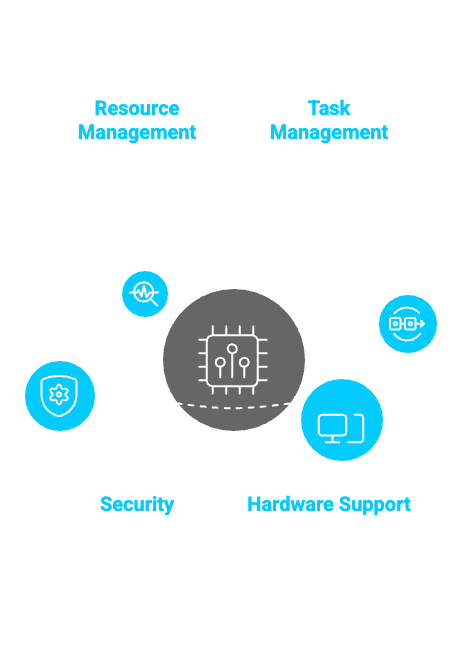
The main function of an OS is to manage tasks by dividing them into smaller ones so that they can be executed simultaneously. It also controls access to resources such as memory, disk space, and network connections. An OS must have all the basic functions required for normal operation, including input and output devices, storage, networking, and security. In addition, it must be able to support a wide range of hardware configurations.
Improved security
All software is prone to bugs, and operating systems are no exception. A software update can fix any bugs that may be present in the current version. New security updates can also be downloaded with the new OS, providing you with the latest protection against malware and malicious attacks.
Upgrading to a newer version of your OS will patch known security flaws, and improve your overall security posture. Newer OS versions have the latest bug fixes, which are one of the first things malicious actors will look for in a target system.
Additionally, it’s easy to see if an application has been compromised on a new OS release by looking at its version numbers.
Access latest features
By upgrading your operating system you’re giving yourself access to the latest features and developments. This can include things like better security, increased stability, a more responsive user interface, and other useful improvements that can keep your device running smoothly. In addition, switching to the latest version of your OS can make it easier for you to install new apps, as many popular programs require OS-specific support.
Better compatibility
By upgrading your operating system, you can improve compatibility with older devices. Most operating systems are backwards compatible, meaning they can work with other devices. However, if you have an old device that is not compatible with newer operating systems, upgrading to a newer version will help increase compatibility.
Boosted device performance
If your device is running on an old operating system, it’s likely to be slowing down. This is because the latest OS is better at managing your device than an old OS.
As you upgrade your operating system, you are upgrading the foundation of the device. This makes upgrading easier and quicker. Once upgraded, performance will increase because less time will be required to complete functions that were previously taking longer. The improved performance can also be seen in reduced battery drain and faster boot times.
Reduced costs
If you upgrade your operating system, you won’t have to replace your device anytime soon. Newer operating systems are designed to run efficiently on older devices. Upgrading the OS will improve your computer’s performance, security, and stability, as well as reduce the energy costs of your computers and decrease wear-and-tear on your machines.
Vendor support
Another benefit of upgrading your OS is vendor support. Vendors provide software updates that are designed to keep your device running at its best. These updates can fix problems that arise over time or add additional functionality, such as new features in specific apps or security fixes in third-party software. When you upgrade to a newer version of your operating system, you’ll likely receive these updates automatically. However, if you don’t have automatic updates enabled on your device, they may not be available.
If you’re using an old OS, it might not be supported by the vendor. This means that you won’t be able to receive any more updates for the device, thereby reducing its lifespan.
Increased productivity and efficiency
Upgrading your OS will improve your productivity by allowing you to run programs and other tasks more quickly. Over time, your computer’s operating system will become outdated, resulting in a slower and less efficient system. When you upgrade your operating system, however, you can avoid this slowdown.
A new OS will also bring new features. You can take advantage of these new features to increase your productivity and efficiency.
Find the right OS for your business needs
Upgrading your operating system is a great way to improve the performance, security, and compatibility of your system. When you choose to upgrade your OS, you’re also making a simple investment in your device’s hardware and software.
The IT experts at Steadfast Solutions can help you upgrade your existing OS, move to a new OS, and manage your entire software environment to ensure upgrades are put through as soon as they are available, for maximum performance and security.
FAQs
How do I know if my current hardware is too old for a new OS?
Before you begin an upgrade, you should check out the “Minimum System Requirements” provided by the manufacturer (such as Microsoft or Apple). Generally, if your computer is more than five or six years old, it may struggle with the latest software. Key things to check include:
- RAM: Most modern systems need at least 8GB to run smoothly.
- Storage Space: You usually need 20GB to 60GB of free space just to install the update.
- Processor Speed: Older chips may not support the security features required by newer operating systems like Windows 11.
Can an OS upgrade delete my existing files?
While most modern “in-place” upgrades are designed to keep your files, photos, and apps exactly where they are, there is always a small risk of something going wrong during the installation. To stay safe, you should always follow these steps:
- Back up your data: Use an external hard drive or a cloud service like OneDrive.
- Check app compatibility: Ensure your most important work software will still work on the new version.
- Charge your device: If using a laptop, keep it plugged into power, so it doesn’t turn off halfway through the process.
How long does a typical operating system upgrade take?
The time it takes depends on your internet speed and the speed of your hard drive. On a modern PC with a fast fibre connection and an SSD, it can take as little as 30 to 60 minutes. On an older machine with a standard hard drive and slower Wi-Fi, the process can take several hours. It is best to start the upgrade at the end of the working day to avoid any downtime.
Can I go back to my old version if I don't like the new one?
Most operating systems provide a “Rollback” period, usually lasting about 10 days. During this window, you can go into your settings and choose to “Go Back” to your previous version if you encounter major problems. After this period, the system deletes the old files to save space, and going back would require a full manual reinstallation.
Why do some people wait a few months before upgrading to a new OS?
Some business owners and IT professionals prefer to wait for the first major “patch” (often called a point of release, like v1.1) before upgrading. This is because:
- Early Bugs: Brand-new software often has minor hidden glitches that are only found after millions of people start using it.
- Driver Stability: It gives hardware manufacturers time to release the best drivers for printers, scanners, and specialised equipment.
- IT Testing: It allows your IT department to test the new system with your company’s specific software to ensure nothing breaks.