

Single Sign-On (SSO) is one of the most popular methods for authenticating users. It’s an efficient, secure, and cost-effective way to manage user identities and access to applications and services. Azure Virtual Desktop (AVD) is a cloud-based desktop virtualization service that enables users to access their desktops and applications in the cloud.
So, can you combine the two technologies and deploy Single Sign-On with Azure Virtual Desktop? The answer is yes, and it’s actually quite easy to do. In this article, we’ll explain how you can use Azure Active Directory (Azure AD) to enable SSO with AVD, allowing you to quickly and securely access your virtual desktops.
What is SSO?
Single sign-on (SSO) is a form of authentication that allows users to access multiple applications and websites with just one set of login credentials. Instead of having to remember multiple usernames and passwords, they can log in to all the systems they need with a single ID and password. This provides users with a much more convenient and secure way to access the resources they need quickly and easily.
Benefits of using SSO
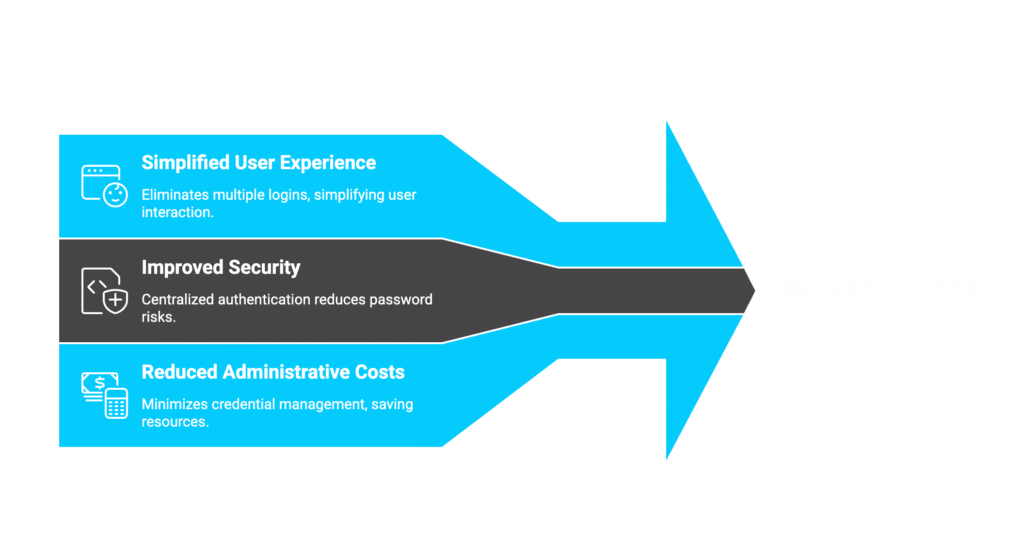
The primary benefit of using SSO is that it simplifies the user’s experience by eliminating the need to remember and enter multiple usernames and passwords. With SSO, users only need to authenticate once and can then access any application within their environment with one set of credentials.
Another advantage of SSO is that it improves security by providing a more secure authentication process. By requiring users to authenticate only once, SSO eliminates the need to store multiple passwords, which reduces the risk of theft or data breaches. SSO also provides a centralised authentication system that makes it easier to manage user access, allowing administrators to quickly and easily add or remove users from applications.
SSO can also reduce administrative costs by reducing the need to manage multiple credentials. This can result in significant cost savings for organisations, as well as improved security and user experience.
What is AVD?
Azure Virtual Desktop (AVD) is a cloud-based service offered by Microsoft that allows users to access their data, applications, and desktops from any device, anytime, and from anywhere. It provides users with a secure and reliable way to access and manage their virtual desktop environment. With AVD, users can access their applications, data, and desktops from any device, including desktops, laptops, tablets, and smartphones.
Prerequisites for enabling SSO in AVD
Before configuring SSO, ensure you have at least one of the following installed:
- Windows 11 Enterprise single or multi-session with the 2022-09 cumulative updates for Windows 11 or later.
- Windows 10 Enterprise single or multi-session, versions 20H2 or later with the 2022-09 cumulative updates for Windows 10 Preview or later.
- Windows Server 2022 with the 2022-09 cumulative update for Microsoft server operating system preview or later.
Create a Kerberos Server object when your session host is:
- Hybrid Azure AD joined.
- Azure AD joined, and your environment has Active Directory Domain Controllers. In this care, Azure AD Kerberos is required for users to access on-premises resources.
Clients must support:
- Windows Desktop client on local PCs, running Windows 10 or later versions.
- A web client.
Configuring SSO with Azure AD authentication
SSO can be configured for AVD via Azure AD. First, you must customise the Remote Desktop Protocol (RDP) through the manual settings.
From the main dashboard:
- Navigate to Settings > RDP Properties.
- Navigate to Connection information > Azure AD authentication.
- Select RDP will attempt to use Azure AD authentication to sign in.
Once this option has been selected, the first time you attempt to log into the session host, you will be prompted to authenticate with Azure AD. Ensure you allow the remote desktop connection at this time.
Azure AD remembers up to 15 hosts for 30 days before it is required to make a new authentication prompt. You must create the Kerberos server object before enabling SSO on the Hybrid Azure AD joined VMs, or you will not be able to connect to the VMs.
Manage your AVD environment with expert guidance
With popular technologies like SSO and AVD, you can create truly flexible and powerful desktops that are constantly getting better. They can reflect the needs of different users at different stages in their professional development, while also remaining secure and manageable.
The Microsoft specialist team at Steadfast Solutions can help you manage and configure your AVD environment for optimal performance, and train your users to easily navigate the platform so they can work with ease and enhanced security from any location.
FAQs
Does SSO for Azure Virtual Desktop work on all devices?
Currently, the seamless SSO experience is most reliable when using the Windows Desktop client or the web client. While Microsoft is constantly updating its apps, users on macOS, iOS, or Android may find that they still encounter an initial credential prompt depending on the specific version of the Remote Desktop app they are using. For the best “single-click” experience, we recommend using the latest version of the Microsoft Remote Desktop client for Windows.
What happens to SSO if my internet connection drops?
SSO relies on a token-based system managed by Microsoft Entra ID (formerly Azure AD). If your connection drops briefly, the session will attempt to reconnect using the existing token. However, if the token expires or the connection is lost for a long period, the user may be asked to re-authenticate to prove their identity before the SSO can re-establish the secure tunnel to the virtual desktop.
Can I use SSO if my business still uses "Legacy" Active Directory?
To make SSO work in a hybrid environment, you must ensure that your on-premises Active Directory is synchronised with Microsoft Entra ID. Some of the technical requirements include:
- Hybrid Join: Your virtual machines should be Microsoft Entra hybrid joined or Microsoft Entra joined.
- Kerberos Cloud Trust: You may need to configure a Kerberos “Cloud Trust” or “Server Trust” to allow the cloud-based identity to talk to your local network resources.
- Network Routing: Your local domain controllers must be reachable by the AVD hosts if you are using specific hybrid configurations.
Are there specific browser requirements for the AVD Web Client?
Yes, if your users are accessing AVD through a web browser rather than the desktop app, they must use a modern browser that supports “Third-Party Cookies” or specific “Web Account Manager” (WAM) extensions. In Microsoft Edge, this is usually enabled by default, but in browsers like Chrome or Safari, privacy settings might occasionally block the SSO token from passing through, requiring the user to sign in manually.
Does SSO interfere with Multi-Factor Authentication (MFA)?
SSO makes MFA much less annoying for the user. Instead of being asked for a code when they log into Windows and again when they open the virtual desktop, the user only performs the MFA check once during the initial sign-in to Microsoft Entra ID. Once that identity is verified, the SSO “hands off” that trusted status to the Azure Virtual Desktop session without further interruptions.